

How To Create Sftp Server In Windows 2012
If you need an SFTP server, you can set it up easily on a Linux box since it's supported out of the box. But if you'd like to set up one on Windows, you need to do some extra work since SFTP is not natively supported on Windows. Don't get confused it with the FTPS, short for FTP over SSL, which is supported out of the box with IIS on Windows Servers.
Steps to set up a SFTP/SSH server using OpenSSH on Windows Server 2012 R2
1. Download the latest OpenSSH for Windows binaries. Choose the OpenSSH-Win64.zip package.
2. Extract the package and save them to C:\Program Files\OpenSSH folder.
3. Open an elevated PowerShell console, and run the following commands to install SSHD and ssh-agent services.
cd "\Program Files\OpenSSH" .\install-sshd.ps1
If failed due to the Policy that prevents it from executing, run this instead:
powershell -ExecutionPolicy Bypass -File .\install-sshd.ps1

4. In the same PowerShell console, run the following commands to generate server keys and restrict an access to them.
.\ssh-keygen.exe -A PowerShell -ExecutionPolicy Bypass -File .\FixHostFilePermissions.ps1 -Confirm:$false
5. Open an incoming port in Windows Firewall for the SSH server. You can either run the following PowerShell cmdlet to open it or do it through Windows Firewall set up from Control Panel.
New-NetFirewallRule -Protocol TCP -LocalPort 22 -Direction Inbound -Action Allow -DisplayName SSH

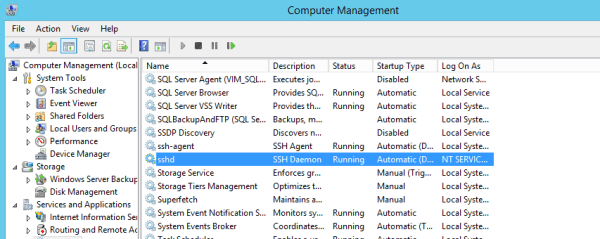
6. Open services window, locate the sshd service and click Start to start the service. If succeed, you are all set. And you need to change the Startup Type to Automatical so the service can be launched automatically.
Testing the connection to the server
You can use any tools that support SSH to connect to the SSH server you just set up, such as FileZilla, WinSCP, PuTTY to name a few. Take WinSCP for example, use the server's name as Host name, leave the Port number at 22, and type in your Windows user account info as the username and password. If it's part of the Windows domain, use the format ofdomain_name\username or [email protected] instead.

In some cases where you need to verify the fingerprint of the server, this is how you can find out:
.\ssh-keygen.exe -l -f ssh_host_ed25519_key -E md5
then, when you connect to the SSH server the first time, you can compare the info you just collected with the one popping on the screen.

Alternative options
I had to try a few times to make OpenSSH work for me. But if it doesn't work out for you, there are a few other options you can try to use as well.
- CoreFTP
- BitVise SSH Server
- freeSSHd and freeFTPd
Resources
Installation Guide on WinSCP
How To Create Sftp Server In Windows 2012
Source: https://www.kjctech.net/setting-up-sftp-or-ssh-server-on-windows-server-2012-r2/
Posted by: smithyeterfer.blogspot.com
0 Response to "How To Create Sftp Server In Windows 2012"
Post a Comment